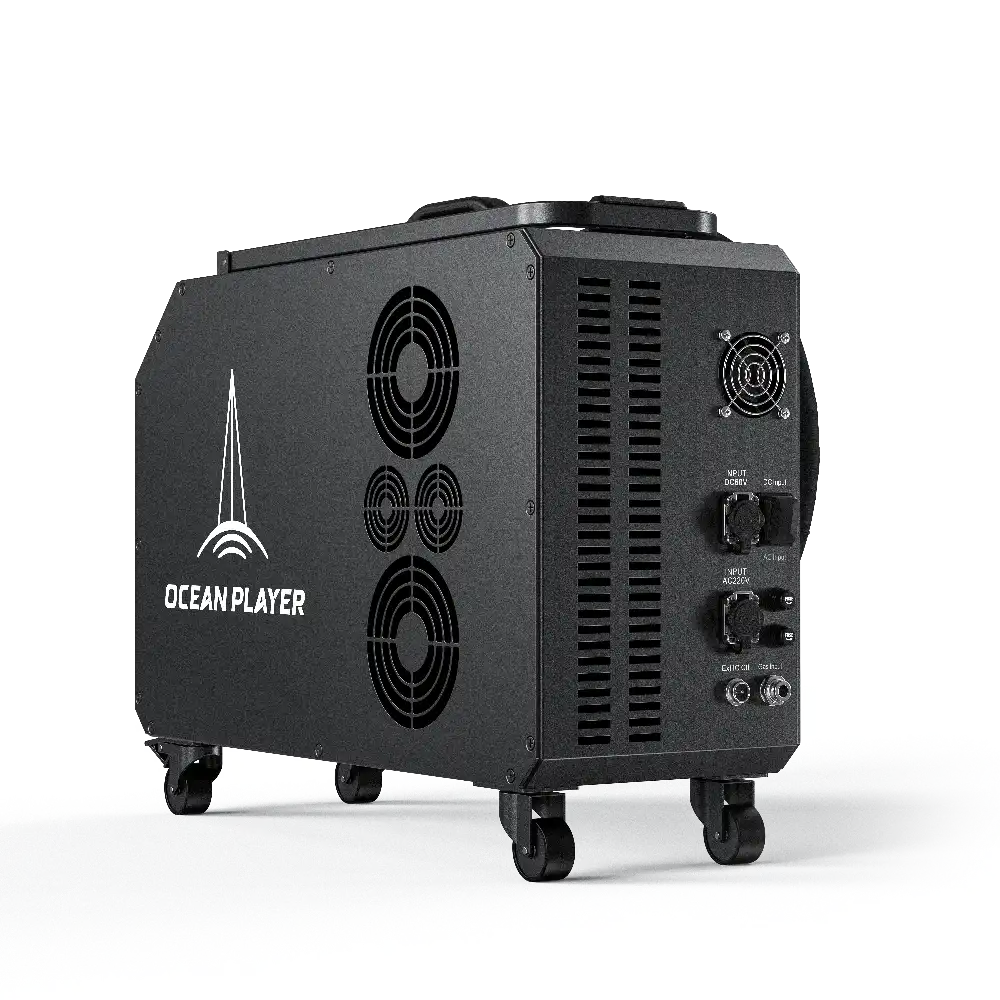
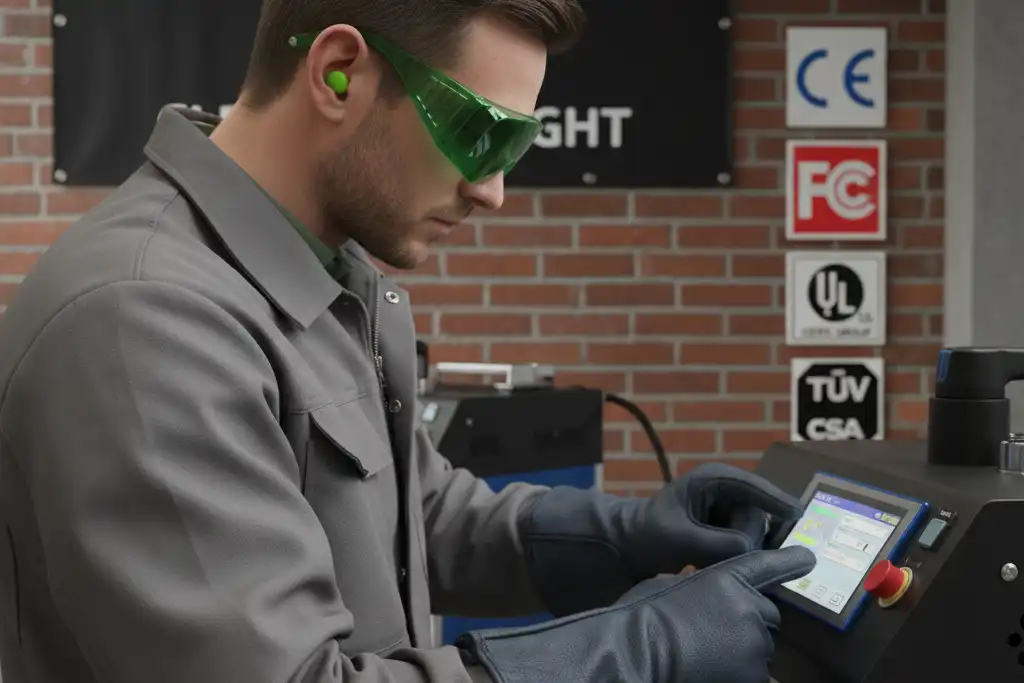
Setting the right parameters on your Laser Cleaning Machine keeps your work safe and effective. If you use too much power, you might burn or melt the surface. Too little power can leave dirt behind and slow you down. Missing key settings, like minimum or corner power, can even cause burnt edges when the machine turns. Start with low power and slow speed. Adjust carefully to protect your material and get the best results.
Key Takeaways
- Begin with low power and slow speed. This helps protect the material.
- Change power settings slowly. Too much power can burn the surface. Too little power leaves dirt.
- Use short pulses for hard dirt. Use longer pulses for thick layers. Watch out for heat.
- Pick the right wavelength for the material. Different materials absorb laser light in different ways.
- Watch the cleaning process closely. Make sure the results look even. Change settings if needed.
- Write down your settings for each job. This helps you repeat good results. It also helps you avoid mistakes later.
- Take care of your laser cleaning machine often. This keeps it working well and safely.
- Try your settings on a small spot first. This helps you find the best settings before cleaning big areas.
Laser Cleaning Machine: Key Parameters
Power Settings
Cleaning efficiency
When you use your Laser Cleaning Machine, check the power first. Power tells you how much energy goes to the surface. If the power is too low, some dirt or paint stays. If the power is too high, the material can get hurt. Start with low power and slowly make it higher. This helps you avoid problems and keeps things safe.
Here is a table that shows what happens with different energy levels:
| Laser Energy (mJ) | Cleaning Outcome | Surface Damage |
|---|---|---|
| 10 | Partial removal of paint | None observed |
| 20 | Complete removal of paint | None observed |
| 25 | Surface damage observed | Yes |
You can see that more energy cleans better, but too much can hurt the surface. Always test on a small spot first.
Substrate safety
Keeping the substrate safe is very important. You want to clean without burns, melting, or scratches. The right power depends on the material and what you want to remove. Use the table below to help pick a starting power for your Laser Cleaning Machine:
| Power Level | Application Description |
|---|---|
| 100W | Good for light jobs and gentle surfaces, works for rust, paint, and dirt without hurting the substrate. |
| 200W | Works for more jobs, like cleaning thicker rust and coatings. |
| 500W | Best for big cleaning jobs, removes oil, grease, grime, oxidation, and tough paint. |
Start with the lowest power that fits your job. Only go higher if you need more cleaning.
Pulse Duration
Contaminant removal
Pulse duration means how long each laser pulse lasts. Short pulses give more power fast. This helps you clean tough dirt quickly and keeps heat low. Long pulses clean thick layers but can make the material too hot.
- Short pulses give high power and help remove dirt while keeping the substrate safe.
- Long pulses can make heat build up, which helps with thick dirt but can hurt the material.
Material compatibility
Different materials need different pulse times. Thin metals or plastics need short pulses so they do not get damaged. Nanosecond pulses work for things like rust and oil. For small parts, picosecond or femtosecond pulses are best because they keep things cool.
- Nanosecond pulses: Good for cleaning rust, oil, and oxide layers.
- Picosecond and femtosecond pulses: Do ‘cold processing’, keep heat low, good for small parts and gentle materials.
- Short pulses: Help clean better and lower the chance of damage.
Always match the pulse time to your material and dirt. Test and change settings as needed.
Frequency & Mirror Frequency
Precision control
Frequency means how many laser pulses hit the surface each second. Mirror frequency helps move the laser for neat cleaning lines. Higher frequency makes smoother and more even lines. This is good for shiny metal finishes. Lower frequency makes dots, which helps stop overheating on heat-sensitive materials.
| Frequency Setting | Effect on Cleaning Precision |
|---|---|
| Higher Frequency | Makes smoother and more even lines, good for shiny metal finishes. |
| Lower Frequency | Makes dotted lines, good for heat-sensitive materials to stop overheating. |
- Higher frequency gives less power per pulse, so you need to balance it with pulse width.
- Lower frequency gives more power per pulse, which cleans better but can make things too hot.
Cleaning area accuracy
You can change frequency and mirror frequency to pick the size and shape of the cleaned area. Higher frequency means more pulses each second, so the finish is smoother. Lower frequency means fewer pulses, which helps control heat. Always start with safe settings and change them a little at a time until you get the results you want.
Tip: Start with low frequency and slow scanning speed. Watch how the cleaning looks and change settings for the best finish without making things too hot.
By learning and changing these key settings, you can use your Laser Cleaning Machine safely and well. Always test, watch, and improve your settings for every new job.
Wavelength Selection
Material absorption
You need to pick the right wavelength for your Laser Cleaning Machine. Different materials take in laser light in their own way. The absorption coefficient changes with the wavelength. Some materials heat up better at certain wavelengths. Metals often absorb Nd:YAG lasers well. Organic things, like paint, work better with CO2 lasers. Matching the wavelength to the material makes cleaning faster and safer. This also helps you avoid hurting the surface.
Contaminant selectivity
Choosing the right wavelength helps you clean only the unwanted layer. If you pick the best wavelength, the contaminant takes in the energy. The base material does not get affected. This makes cleaning more exact. You can remove rust or paint without hurting the metal below. The choice between Nd:YAG or CO2 lasers depends on how the contaminant and substrate absorb light. Always check how well things absorb before you start. This step helps you get the best results with your Laser Cleaning Machine.
Spot Size & Scanning Speed
Coverage and uniformity
Spot size and scanning speed work together to control cleaning. A smaller spot size gives you more accuracy. You can clean small or detailed areas well. Move the laser slowly to keep cleaning even. A larger spot size covers more area at once. This makes cleaning faster but less precise.
| Spot Size | Effect on Cleaning Efficiency | Effect on Scanning Speed |
|---|---|---|
| Smaller | Improves removal accuracy, suitable for detailed work | Requires slower scanning speeds for uniformity |
| Larger | Covers larger areas, increases efficiency | Allows for faster scanning but may reduce precision |
You can change the scanning pattern too. Linear scanning works for flat surfaces. Cross-scanning helps cover more area and avoids missed spots. Spiral scanning is good for curved or odd shapes.
Overheating prevention
Watch for overheating when you use your Laser Cleaning Machine. A small spot size puts more energy in one place. This can clean better but also cause heat to build up. If you move the laser too slowly, the surface gets too hot. Adjust the scanning speed to prevent this. Move the laser at a steady pace to spread the energy. This keeps the temperature safe and protects the material.
| Parameter | Definition | Effects on Overheating |
|---|---|---|
| Beam Spot Size | Diameter of the laser beam on the surface. | A smaller spot size increases energy concentration, improving cleaning efficiency. |
| Scanning Speed | Speed at which the laser moves across the surface. | Proper scanning speed ensures even energy application, preventing excessive buildup. |
Tip: Start with a bigger spot size and moderate speed. Watch the results and change for more detail or faster cleaning if needed.
Energy Density
Effective cleaning threshold
Energy density means how much laser energy hits each area. You need enough energy to remove dirt but not so much that you hurt the base material. For example, when cleaning rust from steel, keep energy density between the cleaning and damage thresholds. Too little leaves rust. Too much can harm the steel.
Balancing power and safety
You can balance cleaning power and safety by changing several settings:
- Pick the right wavelength. Shorter wavelengths work well for organic dirt. Longer wavelengths clean inorganic materials.
- Choose the correct pulse duration. Short pulses remove thin layers. Long pulses handle thicker buildup.
- Set the power density carefully. Too little power will not clean well. Too much can damage the surface.
- Adjust the scanning speed. Fast speeds cover more area but may need more passes for tough spots.
This careful balance lets you clean well and keep the substrate safe. The process is exact, so you can remove dirt or coatings and leave the material untouched. Always start with safe settings and increase slowly. This helps you get the best results from your Laser Cleaning Machine.
Step-by-Step Parameter Setting
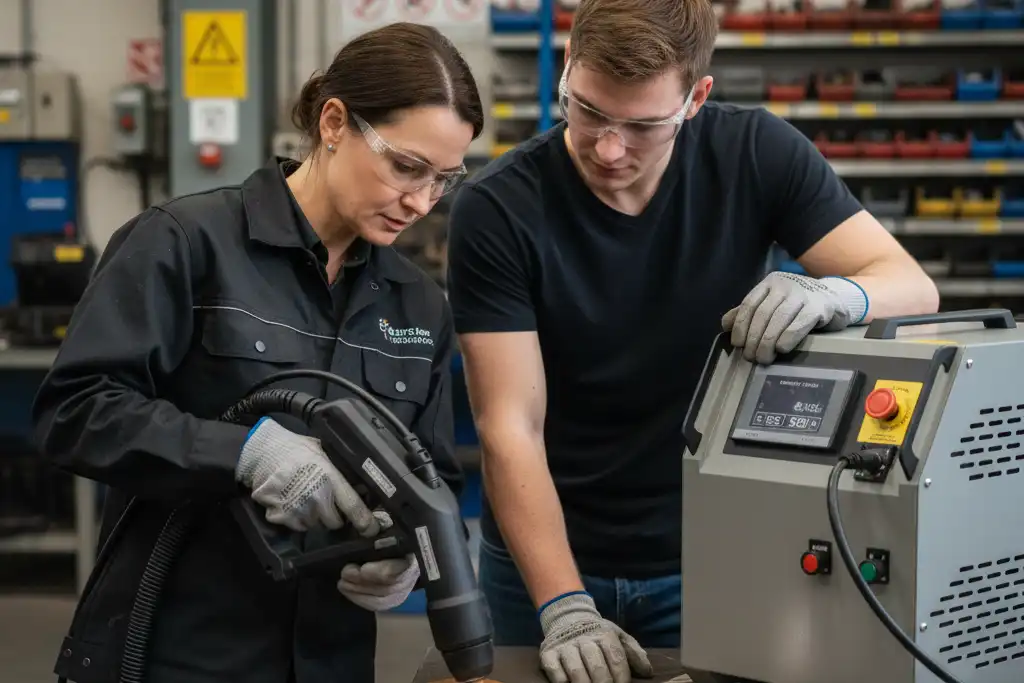
Identify Material & Contaminant
You must know what you are cleaning first. Look at the material. Is it metal, plastic, or ceramic? Metals like steel take in laser energy well. Shiny metals like copper or aluminum bounce light away. Plastics and ceramics can break if power is too high.
Next, check the contaminant. Is it rust, paint, oil, or dust? See how thick the layer is. Check how tightly it sticks to the surface. Light oil or dust comes off easily. Thick rust or hard coatings need more energy and slower cleaning.
Here is a simple way to do this:
- Check the material’s features. Look for how shiny it is, how well it moves heat, and its melting point.
- Find out what the contaminant is. Is it light or heavy? Is it stuck tight or loose?
- Pick a cleaning plan. Use low-energy scans for light oil. Use stronger pulses for thick rust.
You can use this table to see which combinations need extra care:
| Material Type | Contaminant Type | Special Consideration |
|---|---|---|
| High absorptivity | Rust, oxides, paint | Good targets for laser cleaning. |
| Low absorptivity | Polished aluminum | Pick wavelength carefully to avoid damage. |
| High thermal conductivity | Copper, aluminum | Spreads heat fast, lowers overheating risk. |
| Low thermal conductivity | Stainless steel, ceramics | Holds heat, higher risk of damage. |
| Thick coatings | Various | Needs higher energy or more passes. |
| Weakly adhered | Dust, corrosion | Easy to remove with gentle settings. |
| Strongly bonded | Cured coatings, epoxies | Needs stronger settings or longer exposure. |
Tip: Always test a small spot first. This lets you see how the material and contaminant react to the laser.
Start with Conservative Settings
Begin with safe, low settings. This keeps your material safe. You can see how the laser works on the surface. Use low pulse energy and medium scanning speed. You can raise power or slow down later if needed.
Here is a table to help you:
| Step | Description |
|---|---|
| 1 | Start with low pulse energy to avoid damaging the workpiece. |
| 2 | Use moderate scanning speed to keep energy application balanced. |
| 3 | Slowly increase energy or decrease speed for better cleaning. |
Going “low and slow” helps you avoid burns or warping. You protect the substrate, clean better, and control heat.
| Reason | Explanation |
|---|---|
| Protects the Substrate | Too much energy or fast passes can damage the material. |
| Improves Precision | Gradual changes help you find the best settings. |
| Controls Heat | Slow movement lets heat escape, lowering the risk of thermal damage. |
Note: If you see any damage, stop and lower the settings right away.
Test Runs & Adjustments
Do a test run on a small piece. Watch how the laser cleans the surface. Look for smooth edges and even cleaning. Make sure there is no overheating. If you see dirt left or uneven spots, change the settings.
Follow these steps:
- Do a test run on a sample piece.
- Check the cleaning quality. Look at edge smoothness and how much dirt is gone.
- Change the laser power or scanning speed if needed.
- Repeat the test until you get the best result.
Watch these important things:
- Edge smoothness
- Kerf width (the width of the cleaned line)
- Heat-affected zones
Here is a table to help you track what to watch:
| Metric | Description |
|---|---|
| Laser Power | Keep it steady for good cleaning. Drops may mean debris buildup. |
| Beam Profiling | Check the laser beam shape for best results. |
| Cleaning Quality | Look for smooth edges and even removal. |
| Material Advancement | Make sure the material stays in place during cleaning. |
Tip: Change the settings as often as needed. Every material and contaminant is different. You may need to change power, speed, or pulse rate several times.
You can get the best cleaning effect by following these steps. Always start safe, test carefully, and adjust slowly. This keeps your material safe and gives you a clean, smooth finish.
Monitor Cleaning Quality
You should check how clean the surface is during and after each job. Watching closely helps you find problems early. This keeps your work safe and good. You can use your eyes, simple tools, or special machines to see how well cleaning works.
First, look at the cleaned area. The color should look even. There should not be any dirt or stains left. If you see dark spots or rough places, change your settings. Use a magnifying glass or a digital microscope to look closer. These tools help you see small scratches or burns that are hard to spot.
Special machines can show more details. Confocal laser scanning microscopy (CLSM) gives sharp pictures of the surface. You can measure how rough the surface is and find tiny problems. Scanning electron microscopy (SEM) lets you see changes in the surface after cleaning. These methods help you know if all the dirt is gone and the material is safe.
Digital image processing helps you measure how much dirt is gone. Take a photo of the cleaned spot. Turn it into black and white. Count the clean areas. This gives you a number to show how well cleaning worked.
Tip: Always check how the surface looks and feels. Gently run your finger over the area. A smooth finish means good cleaning. If you feel bumps or rough spots, change your settings.
Real-time monitoring systems help you work better. These systems watch the cleaning as it happens. They give you quick feedback and help you fix problems fast. You can see if the laser beam is focused and if the power is steady. This keeps cleaning quality high and helps you avoid mistakes.
| Benefit | Explanation |
|---|---|
| Immediate Feedback | Real-time monitoring gives quick alerts and changes, making cleaning more exact. |
| Continuous Analysis | It checks each cut live, so you get fewer mistakes and less downtime. |
| Monitoring Key Parameters | Important things like beam focus and laser strength are watched to keep quality high. |
| Consistency Across Batches | Every part gets cleaned the same way, which is important for precise jobs. |
| Predictive Maintenance | Saving performance data helps you improve cleaning and keep quality good for a long time. |
You should keep notes about your cleaning results. Write down the settings you used and how well they worked. Take pictures before and after cleaning. This helps you remember what works best for each material and contaminant.
- Check the surface after every cleaning pass.
- Use tools and machines for careful checks.
- Watch for changes in color, texture, and smoothness.
- Use real-time monitoring if your machine has it.
- Keep notes and photos for future jobs.
If you see damage or poor cleaning, stop and change your settings. Careful checking helps you get the best results and keeps your materials safe.
Material & Contaminant Considerations
Substrate Types
Metals
You use metals like copper, aluminum, stainless steel, and carbon steel. Each metal acts differently when cleaned with a laser. Stainless steel and carbon steel take in energy from a 1064nm fiber laser easily. You can clean these metals well with normal settings. Copper and aluminum bounce most of the laser energy away. You need to change the wavelength or use more power for better cleaning. Always check how much energy the metal absorbs and how fast it spreads heat. These things help you pick the right laser settings and keep the metal safe.
Plastics
Plastics need gentle care when cleaned with a laser. Many plastics can melt or burn if you use too much energy or the wrong pulse time. Start with low power and short pulses. Test a small spot first. If the plastic melts or turns black, lower the energy. Use soft settings to keep the surface safe.
Ceramics
Ceramics can be cleaned with a laser, but they can crack or chip if the energy is too high. Use medium power and slow scanning speed. Ceramics take in laser energy in their own way. Always check what kind of ceramic you have before starting. Change the pulse time to stop heat shock.
Tip: Always match the laser wavelength and pulse time to the type of material. This helps you clean well and keeps the material safe.
Coatings & Surface Treatments
Many industrial parts have coatings or special layers. These layers change how the laser works on the surface. You need to think about a few things:
- Materials take in and move heat differently at each laser wavelength.
- The thickness and kind of contaminant decide how much energy you need. Light oil comes off with low energy. Thick rust needs more energy.
- Some coatings make harmful gases when cleaned. Make sure you have good airflow.
- Delicate parts need very short pulses and low energy. This stops damage.
Always check what chemicals are in the coating. Change your settings so you do not hurt the base material or make dangerous fumes.
Contaminant Types
Rust
Rust often shows up on metal surfaces. Thin rust comes off easily with laser cleaning. Thick rust needs more energy and slower scanning. Start with low settings and raise them if rust stays.
Oil
Oil stains are easy to clean. Use low energy and fast scanning speed. This stops the surface from getting too hot and keeps it safe.
Paint
Laser cleaning works well for paint removal. Change the energy based on how thick the paint is. Thin paint comes off fast. Thick paint needs more passes or higher power.
Oxides
Oxides form on metals and ceramics. You can clean them with medium energy and careful scanning. Always check what kind of oxide you have. Some oxides need special wavelengths for best cleaning.
- Coatings and paints turn into gas under the laser without hurting the base material.
- Rust and oxides need different settings depending on how thick they are.
- You can change laser settings to clean each contaminant better.
Note: Always test a small spot before cleaning the whole thing. This helps you find the best settings for each material and contaminant.
Practical Optimization Tips
Equipment Maintenance
You keep your laser cleaning machine in good shape by doing regular checks. Every day, you look for problems you can see. You check for loose wires, dust, or leaks. Each week, you make sure the beam is lined up right. You wipe down the outside and check the cooling system. You also look at the air filter to see if it works well. Once a month, you clean the optical parts very well. You put oil on moving parts. You set up the machine again and check or update the software.
- Daily Tasks
- Look for dust, loose wires, or leaks.
- Weekly Tasks
- Make sure the beam is lined up.
- Clean the outside of the machine.
- Check the cooling system.
- See if the air filter works.
- Monthly Tasks
- Clean the optical parts deeply.
- Oil the moving pieces.
- Set up the machine again.
- Check and update the software.
Tip: Following this plan helps stop breakdowns and keeps cleaning strong.
Data Analysis & Feedback
You make cleaning better by using data and feedback. You write down things like laser power and cleaning quality after each job. You compare what you did to what you wanted. This helps you keep the machine working the same way each time. If something is wrong, you change the laser frequency or other settings to fix it.
You use data to pick the best laser settings. You see how different choices change the cleaned parts. Tools help you guess which settings will work best. Over time, you get more accurate and work faster.
- You use feedback to keep the laser steady.
- You fix errors to keep the laser working right.
- You use data to choose the best settings.
- You get better and faster by checking your results.
Note: Looking at your data and making small changes helps you clean better.
Safety Precautions
You stay safe by following rules when you use the laser cleaning machine. You wear goggles that block the laser light. You keep the area clear and put up warning signs. You check that covers and shields are on before you start. You make sure the air system works to get rid of fumes and dust.
You never look at the laser beam. You keep hands and tools away from the cleaning spot. You follow the safety steps from the machine maker. You teach everyone how to use the machine safely.
| Safety Step | Why It Matters |
|---|---|
| Wear safety goggles | Keeps your eyes safe from laser light |
| Use warning signs | Tells others about laser danger |
| Check shields and covers | Stops people from getting hurt |
| Ensure ventilation | Gets rid of bad fumes and dust |
| Follow instructions | Makes sure everyone stays safe |
Callout: Doing these safety steps every time keeps cleaning safe and works well.
Documenting Settings
Writing down your settings helps you get better cleaning results. When you record each parameter, you can do good jobs again and avoid mistakes. You make a record that shows what works for each material and contaminant.
Start by noting the main settings for every job. Write down the laser power, pulse duration, frequency, wavelength, spot size, scanning speed, and energy density. Also, add what material you cleaned and what contaminant you removed. You can use a notebook, a spreadsheet, or a digital file.
Here is an easy way to keep track of your settings:
- Write the date and job name.
- List the material and contaminant.
- Record each laser parameter.
- Note the cleaning results and any problems.
- Add photos before and after cleaning.
Tip: Use a checklist or template so you do not forget anything important.
You can put your records in a table. This helps you compare jobs and find the best settings.
| Parameter | Value | Material | Contaminant | Result | Notes |
|---|---|---|---|---|---|
| Power | 200W | Stainless Steel | Rust | Clean surface | No damage observed |
| Pulse Duration | 10 ns | Aluminum | Paint | Partial removal | Lower power needed |
| Frequency | 50 kHz | Copper | Oil | Good removal | Increase speed next time |
Keeping records helps you make your cleaning process better. You see which settings work best. You do not make the same mistakes again. Your work stays the same every time.
Looking at your records helps you find patterns. You can spot problems early and change your settings for better results. You can use charts to see changes in your cleaning results.
| Evidence | Explanation |
|---|---|
| Continuous recording of key welding parameters | Builds a big database of process data, which helps you do better jobs and repeat them. |
| Statistical analysis reveals trends | Shows problems and helps you pick the best settings for good results. |
| Implementation of SPC charts | Watches if your process stays steady and finds changes, which helps keep cleaning quality high. |
You can use SPC charts to watch your cleaning process. These charts show if your work stays safe. If you see a change, you can fix it before it causes trouble.
Benefits of documenting settings:
- You can repeat good jobs easily.
- You make cleaning better over time.
- You fix problems faster.
- You help others learn with clear records.
Note: Always update your records after each job. Look at them before you start a new cleaning task. This habit saves time and keeps your work safe and strong.
Laser Cleaning Machine: Troubleshooting
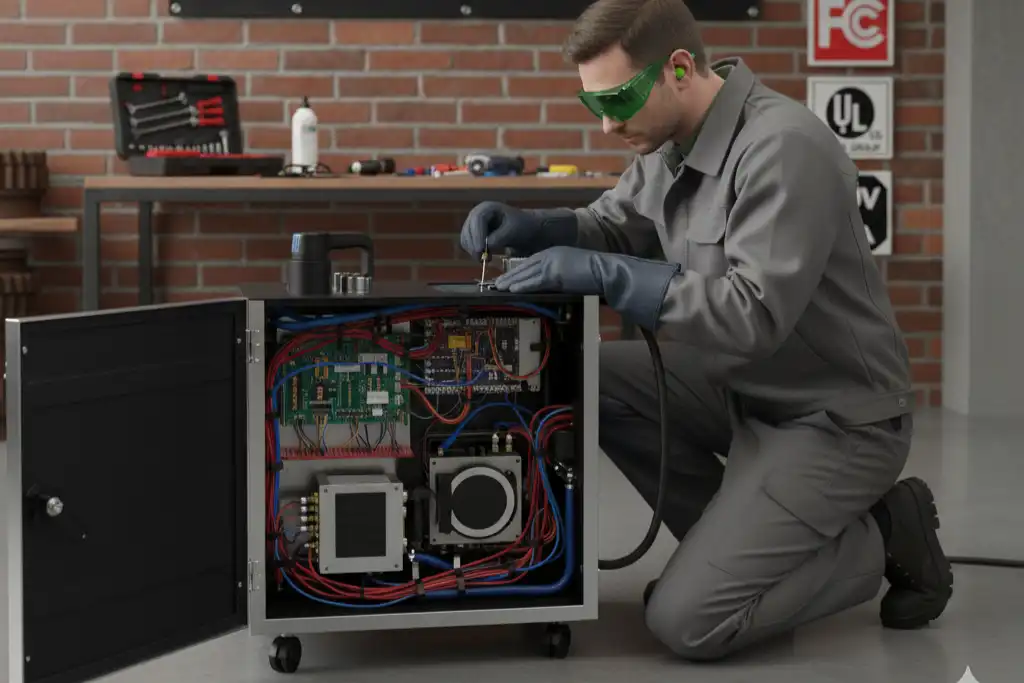
Incomplete Cleaning
You may notice that some dirt or coating stays on the surface after cleaning. This problem often means your settings need adjustment. Start by checking the laser power. If the power is too low, the laser cannot remove all the dirt. Try increasing the power in small steps. Next, look at the scanning speed. If you move the laser too fast, it may miss spots. Slow down the scanning speed and see if cleaning improves.
Check the focus of the laser beam. If the beam is out of focus, energy spreads out and loses strength. Adjust the focus until you see a sharp, bright spot on the surface. Also, look at the pulse duration and frequency. Shorter pulses and higher frequency can help remove tough dirt. If you still see incomplete cleaning, try making more passes over the area.
Tip: Always test on a small area before cleaning the whole surface. This helps you find the best settings without wasting time.
Substrate Damage
Sometimes, you may see burns, melting, or scratches on the material after cleaning. This means the laser settings are too strong for the substrate. First, lower the laser power. Use the lowest setting that still cleans well. Next, increase the scanning speed. Moving the laser faster gives less time for heat to build up in one spot.
Check the pulse duration. Shorter pulses give less heat to the material. If you use long pulses, try switching to shorter ones. Make sure the laser is focused only on the dirt, not deep into the material. If you see damage, stop and adjust your settings right away.
| Problem | Solution |
|---|---|
| Burns or marks | Lower power, faster speed |
| Melting | Shorter pulses, adjust focus |
| Scratches | Use correct wavelength, test first |
Note: Always inspect the surface after each cleaning pass. Early checks help you avoid serious damage.
Heat Build-Up
Heat build-up can cause warping, discoloration, or even cracks in the material. You can prevent this by using the right settings on your Laser Cleaning Machine. Start by lowering the laser power. Use a larger spot size to spread the energy over a bigger area. Increase the scanning speed so the laser does not stay in one place for too long.
Take breaks between cleaning passes to let the material cool down. If you clean a large area, divide it into smaller sections. Clean one section at a time and let each cool before moving on. Use airflow or fans to help remove heat from the surface.
Checklist to Prevent Heat Build-Up:
- Lower laser power
- Use larger spot size
- Increase scanning speed
- Allow cooling breaks
- Use airflow or fans
Alert: If you see smoke, color changes, or feel heat on the surface, stop cleaning and let the area cool before you continue.
Irregular Patterns
When you use a laser cleaning machine, you may see irregular patterns on the surface. These patterns can look like streaks, spots, or uneven lines. They make the cleaned area look messy and can lower the quality of your work. You need to know why these patterns happen and how to fix them.
Common Causes of Irregular Patterns:
- You set the scanning speed too high or too low.
- The laser beam focus is not correct.
- The surface is not flat or has bumps.
- The mirror frequency does not match the cleaning area.
- The spot size is too small or too large for the job.
- The laser power changes during cleaning.
- The material or contaminant is uneven.
How to Identify Irregular Patterns:
You should look at the cleaned area after each pass. Use a flashlight or a magnifying glass to see streaks or spots. Run your finger over the surface. If you feel rough patches or see color changes, you have irregular patterns. Take a photo and compare it to a clean sample.
Tip: Always check the surface under good light. Small patterns can hide in shadows.
Steps to Fix Irregular Patterns:
- Stop the machine and inspect the surface.
- Adjust the scanning speed. Try a slower speed for more even cleaning.
- Refocus the laser beam. Make sure the beam is sharp and clear.
- Change the mirror frequency. Match it to the size of the area you want to clean.
- Test different spot sizes. Use a medium spot for most jobs.
- Check the power supply. Make sure the laser power stays steady.
- Clean the surface before starting. Remove dust or loose dirt.
Troubleshooting Table for Irregular Patterns
| Problem | Possible Cause | Solution |
|---|---|---|
| Streaks or lines | Fast scanning speed | Slow down scanning speed |
| Spots or patches | Poor beam focus | Refocus laser beam |
| Uneven cleaning | Wrong mirror frequency | Adjust mirror frequency |
| Color changes | Power fluctuation | Check and stabilize power |
| Missed areas | Uneven surface | Clean or flatten surface |
Alert: If you see patterns that do not go away after adjustments, stop and check the machine for damage or dirt on the optics.
Preventing Irregular Patterns:
- Always test settings on a small area first.
- Keep the machine clean and well-maintained.
- Use steady, even movements when scanning.
- Record your settings for each job.
You can get smooth, even cleaning results by following these steps. Watch the surface closely and make small changes as needed. Good habits help you avoid irregular patterns and keep your work looking professional.
Advanced Techniques & Automation
Automated Parameter Adjustment
You can make cleaning easier with automated parameter adjustment. Many machines have sensors and software that watch cleaning as it happens. These systems change laser power, pulse duration, and scanning speed by themselves. You set the starting values before you begin. The machine changes them for different materials or contaminants.
How to use automated adjustment:
- Pick the material and contaminant type on the control panel.
- Set the first laser settings from your test results.
- Turn on the auto-adjust feature.
- Watch the screen for feedback. The system shows changes in power or speed.
- Let the machine finish cleaning. Check the surface after each pass.
Tip: Automated adjustment helps you avoid damage and saves time. You get better results with less guessing.
Quality Monitoring Integration
You can make cleaning better by adding monitoring tools. Some machines use cameras, sensors, or microscopes to check the surface while cleaning. These tools give you live feedback. You see if cleaning is even, if spots are missed, or if the surface gets too hot.
Benefits of quality monitoring:
- You find problems early.
- You keep cleaning results the same.
- You lower the risk of substrate damage.
| Monitoring Tool | What It Checks | How It Helps You |
|---|---|---|
| Camera | Surface look | Finds missed spots |
| Temperature sensor | Heat build-up | Stops overheating |
| Microscope | Small details | Finds scratches or burns |
You can set alerts for high temperature or uneven cleaning. The system will stop or change settings to fix the problem.
Note: Always check the monitoring data before you finish. This helps you keep your work safe and high-quality.
Custom Cleaning Profiles
You can save time and get better results with custom cleaning profiles. These profiles store the best laser settings for each material and contaminant. You make a profile after testing and changing your parameters. Next time you clean the same part, you pick the profile and start.
Steps to create and use a custom profile:
- Test different settings for a new material or contaminant.
- Write down the best values for power, pulse duration, frequency, and speed.
- Save these values as a profile in the machine’s memory.
- Name the profile clearly, like “Aluminum – Rust” or “Plastic – Paint.”
- Pick the profile when you clean similar parts later.
Callout: Custom profiles help you repeat good results and avoid mistakes. You work faster and safer.
You can update profiles as you learn more. If you find a better setting, change the profile and save it again. This keeps your cleaning process up to date and reliable.
You get the best cleaning when you set laser parameters carefully. Begin with low power and move the laser slowly. Change the settings one step at a time. Pay attention to these key things: laser power, pulse duration, wavelength, pulse frequency, beam spot size, scanning speed, and energy density. Think about what material you have and what you want to clean off. Decide how much cleaning is needed for your job. Keep trying new settings and learn from each test. This helps you make your cleaning better every time.
FAQ
What is the safest way to start setting laser parameters?
You should begin with low power and slow scanning speed. Test on a small area first. Watch for any damage or incomplete cleaning. Adjust settings step by step.
How do you know if the laser is damaging the material?
Look for burns, melting, or color changes on the surface. Use a magnifying glass to check for small cracks or scratches. Stop and lower the power if you see any damage.
Can you use the same settings for every material?
No, you need to change settings for each material and contaminant. Metals, plastics, and ceramics react differently. Always test and adjust for each new job.
What should you do if cleaning is uneven?
Check the scanning speed and spot size. Try slowing down or using a larger spot. Make sure the laser beam is focused. Repeat the cleaning pass if needed.
How do you prevent overheating during cleaning?
Increase scanning speed and use a larger spot size. Take breaks between passes. Use fans or airflow to cool the surface. Watch for signs of heat build-up.
Why is documenting your settings important?
Recording your settings helps you repeat good results. You can fix problems faster. You learn which parameters work best for each material and contaminant.
What safety gear do you need when using a laser cleaning machine?
Wear laser safety goggles. Keep shields and covers in place. Use warning signs. Make sure the area has good ventilation to remove fumes and dust.
How often should you maintain your laser cleaning machine?
Check the machine daily for dust and loose wires. Clean optics and filters monthly. Oil moving parts and update software regularly. Good maintenance keeps cleaning strong.
See also
The advantages of laser rust removal technology in ship maintenance
The advantages of laser cleaning in the automotive industry
What Factors Affect the Lifespan of Fiber Laser Cleaning Machines